
Copyright © ViserLab 2022
RapidLab is a cutting-edge web-based loan management application built on the PHP Laravel framework. It is specifically designed to cater to individuals seeking to establish their own online lending system.
The documentation will help to understand the total system and we have tried to summarize the total.
If needed, we will update this script continuously and come with new features and security patches. We will try to give the best user experience to all of our clients.
Thank you for purchasing RapidLab. If you have any questions or queries that are not answered in this document, please feel free to contact us via email. We will try to respond to you as soon as possible. Thank you so much.

Do I need VPS or a Dedicated server to run this system?
No, You can run this system in a shared host as well and it will run smoothly. But if you have much traffic, you may need to upgrade your server/hosting. Our codes are highly optimized to ensure the best possible performance.
Which hosting provider should I choose for this? Do you have any suggestions?
You can choose any hosting provider that provides cPanel-based hosting. cPanel is not a must, but we recommend you to have cPanel-based hosting.
I don't have cPanel, What should I do?
Nothing to worry about, Our system will work with any control panel but cPanel is easy to manage, for that we recommend cPanel-based hosting. Also, Our free Support is limited to cPanel-based hosting only.
Do you provide hosting as well?
Yes, We do. We can provide a complete solution for your hosting. We can provide budget shared hosting, premium shared hosting, VPS, Dedicated servers, and Cluster from various geolocation. Please contact us for more details.
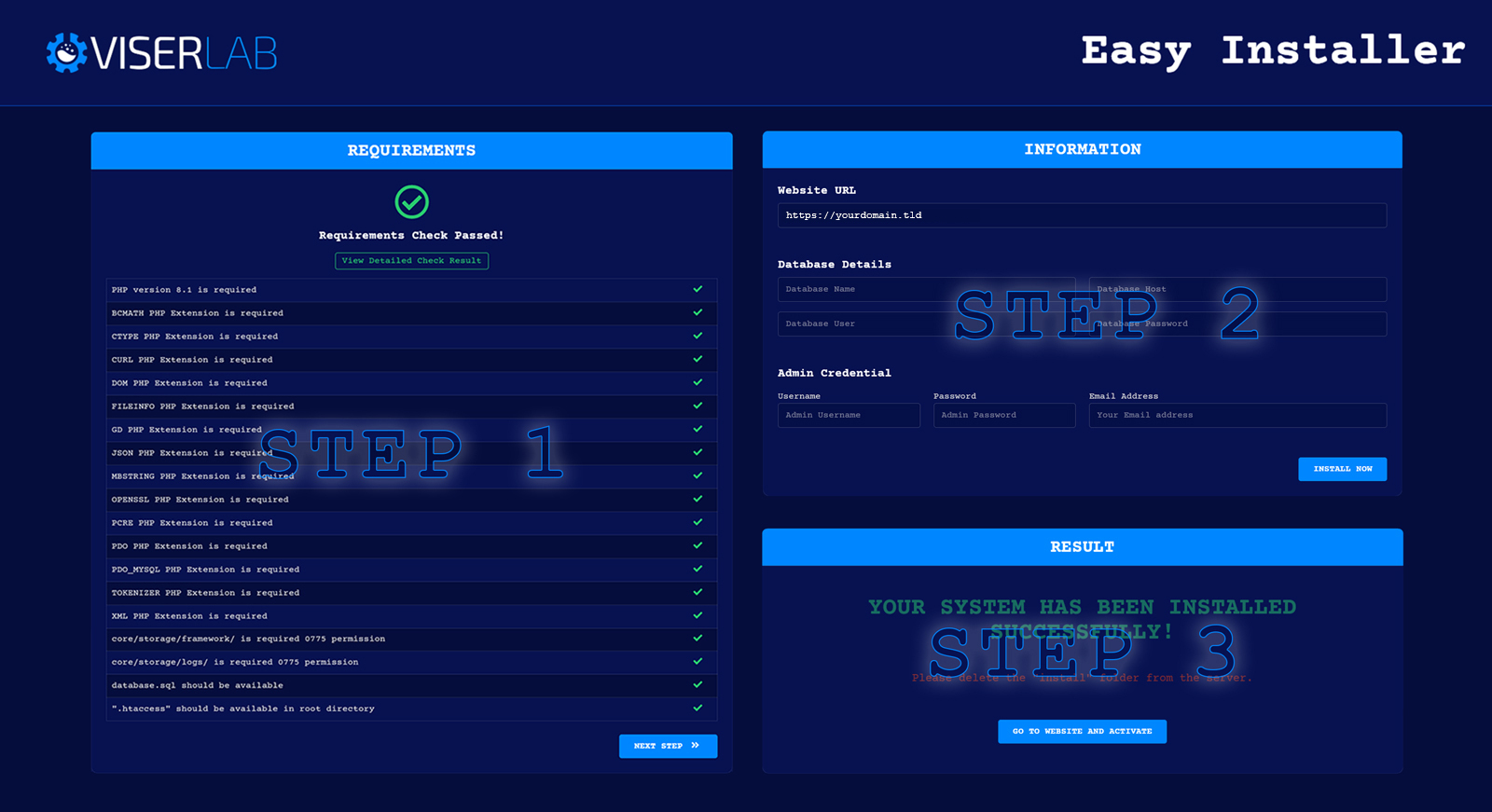
Installation is very easy with our Easy Installer. You can install yourself simply in few steps without any coding knowledge. We develop our installation system to make the installation process flawless and easy.
Installation Steps:
Upload the whole file to the server you have downloaded from download after purchase.
Extract/Unzip the file and move all files in the Files folder to the main
folder(where you want to install it). Make sure you have moved the index.php and
.htaccess as well.
Now please browse http://your-site-url/install/index.php and follow
the process. Your system should be ready to use.
If you are still unable to install the system, please contact us. we offer free installation in cPanel-based hosting.
Admin Login:
your-site-url/admin
After installing the system you need to activate it. When you visit the system, you will be able to see the activation page. Just provide this information to activate and run your system. Your provided information will send to ViserLab server to verify and we never collect any sensitive or confidential data.
Purchase Code: To get purchase code Click Here.
Envato Username: Your Envato username with which you bought system.
Email: Provide your email for further communication.
The purchase code(license) is for one website or domain only. Please activate the license into the correct domain(URL) to avoid any unwanted issues in the future.

After installation, There will be two folders and two files will be in your main folder.
On the "assets" folder, We keep all kinds of assets like CSS, JS, Images. If you want To edit or change anything over CSS or js, please have a look at this folder.
On the "core" folder, We keep the core of Laravel and we maintain full MVC structure on this project.
The Admin Dashboard menu in RapidLab offers a comprehensive set of widgets to empower administrators with essential insights and statistics. It provides a quick overview of the platform's key metrics, including the number of users, pending loans, deposits, withdrawals, and support tickets. Additionally, administrators can track the total deposited and withdrawn amounts, along with associated charges. Interactive monthly deposit and withdrawal charts and a transaction chart enable better financial planning and analysis. This robust Admin Dashboard menu streamlines platform management, ensuring seamless operations and exceptional user experiences
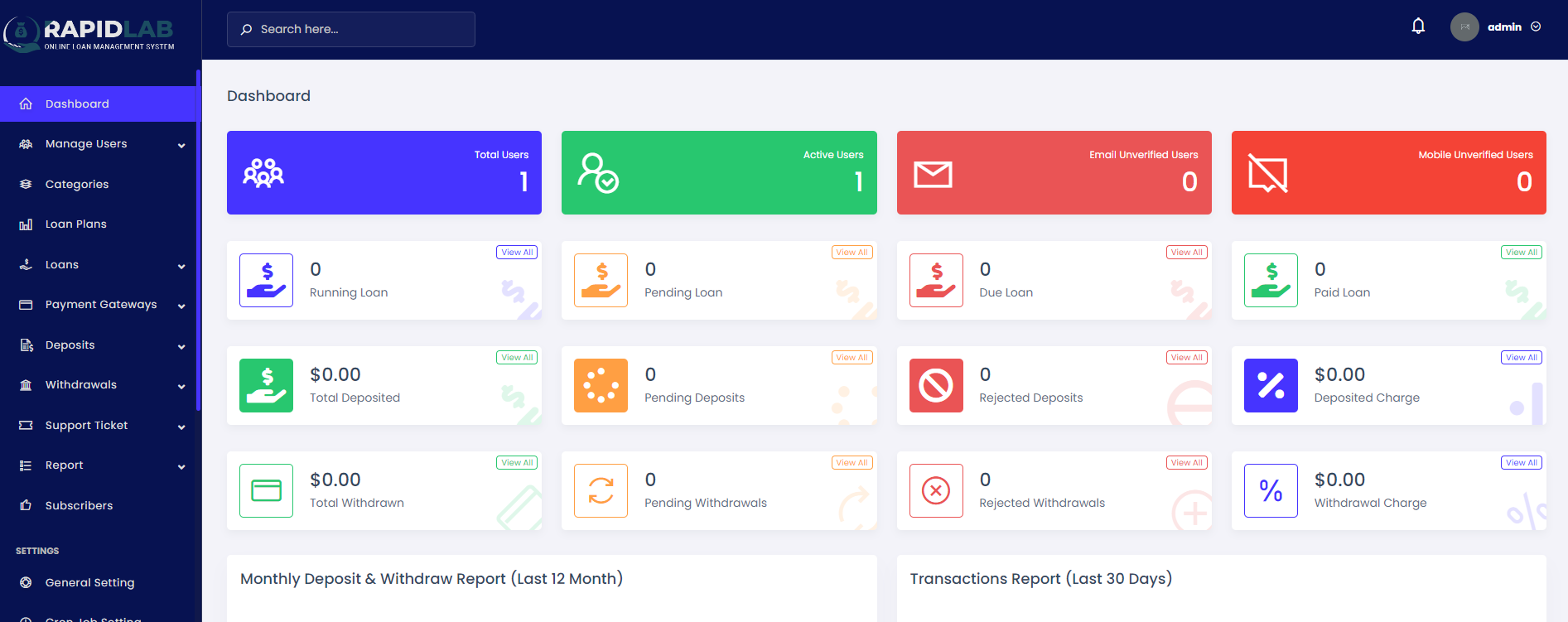
The "Manage Users" menu in RapidLab's Admin Dashboard offers comprehensive tools for effective user management. Admins can access lists of all users, active and banned users, as well as those with pending KYC verification.
The menu includes options to send notifications to all users and provides a link to detailed user insights on loan, payments, and transactions. Additionally, administrators can update user profile data for personalized support.
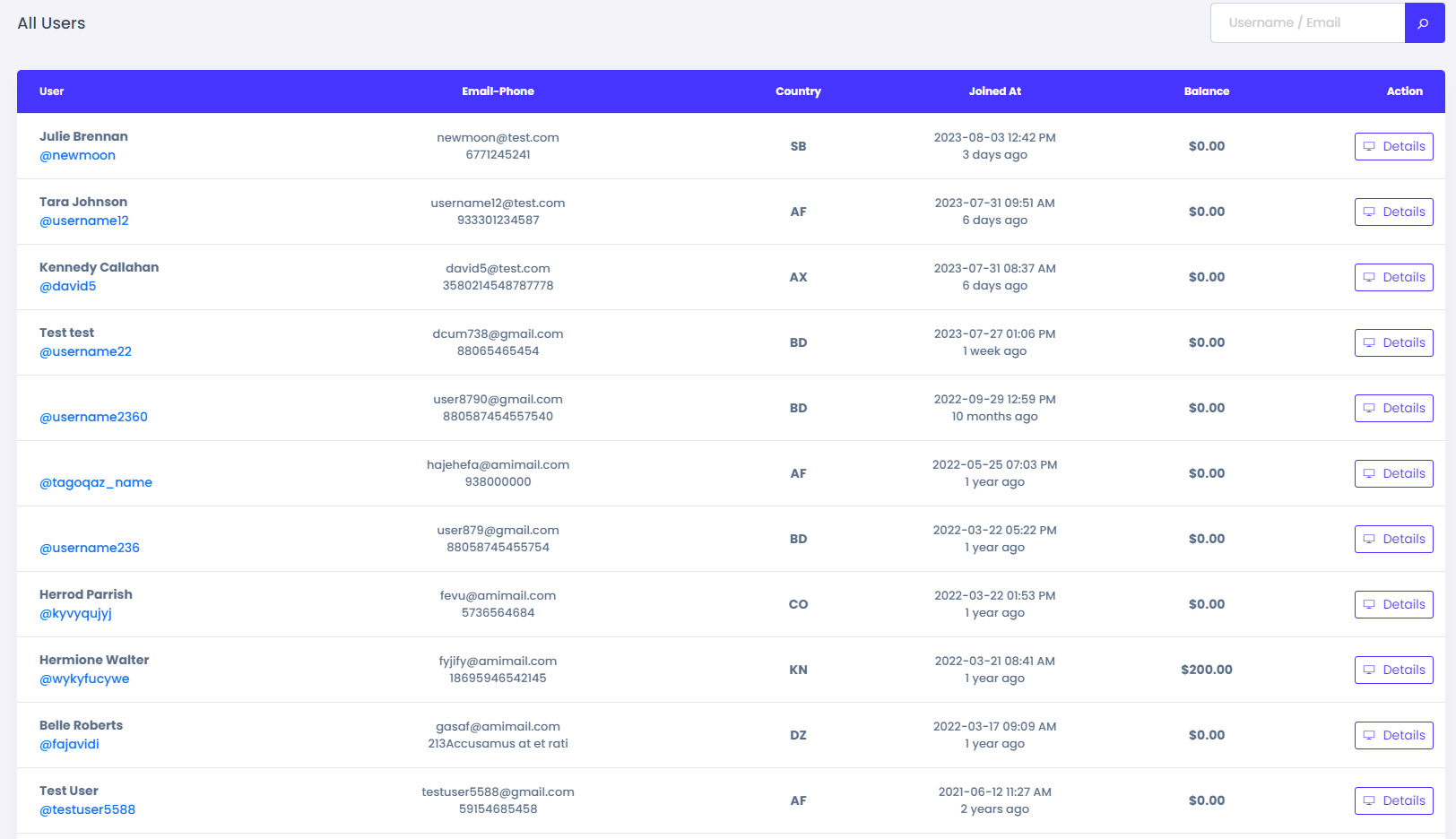
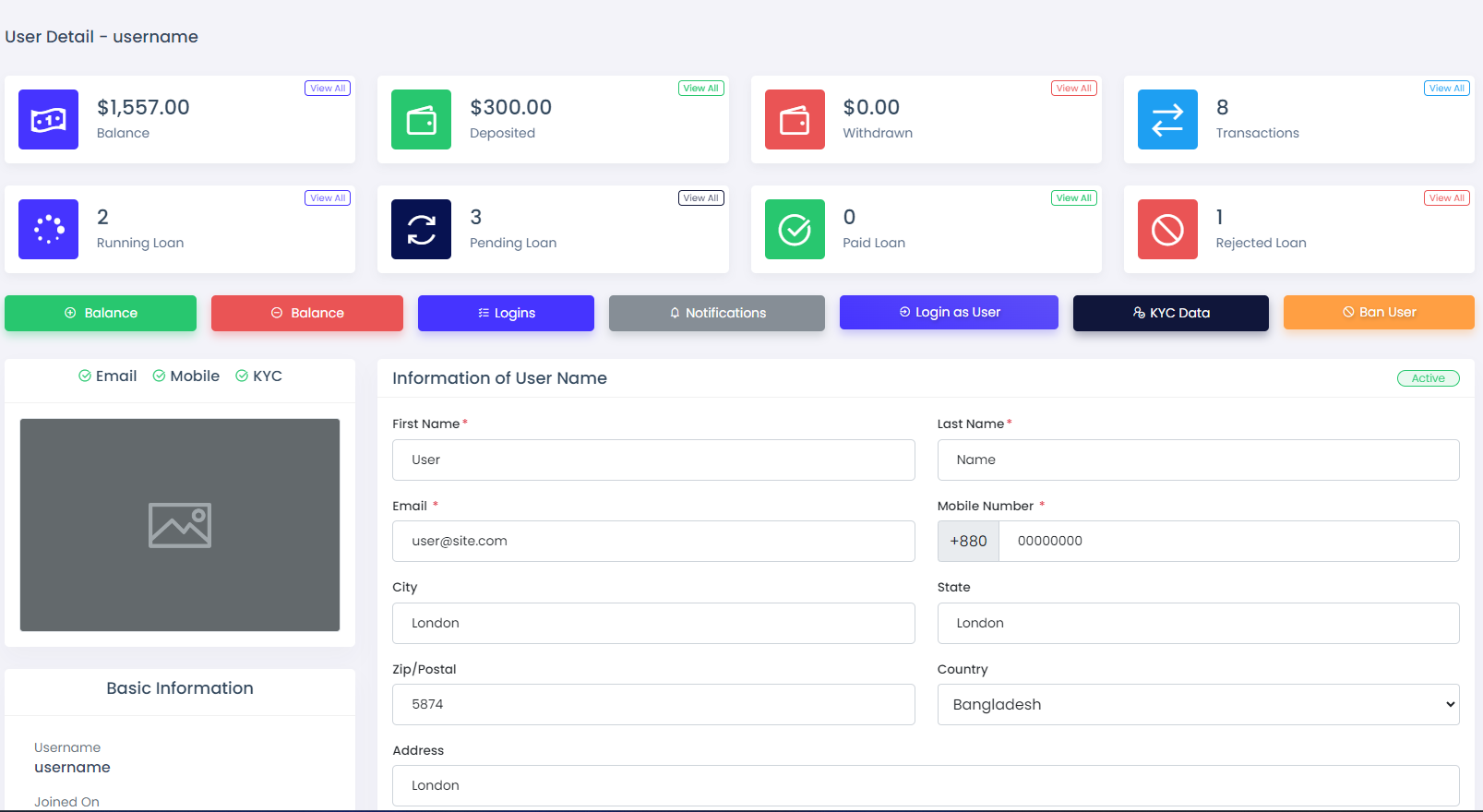
On the details page within the "Manage Users" menu, administrators have an overview of the user's essential information, including their account balance, deposited and withdrawn amounts.
Admins hold the authority to update user information, allowing them to make necessary changes and adjustments. They can also add or subtract from the user's balance as required, ensuring efficient fund management.
Furthermore, from the details page, administrators can view the user's login history, enabling a comprehensive understanding of their account activity. Additionally, admins have the capability to ban users directly from this page, maintaining control over the platform's integrity and security.
Email Verification: If a user's email verification is unverified, a verification code will
be sent to their email when they attempt to log in. They must verify their account using the code
for enhanced security.
Mobile Verification: Similarly, if a user's mobile verification is unverified, a
verification code will be sent to their mobile when they attempt to log in. They must verify their
account using the code for added security.
2FA Verification: If a user enables 2FA security from their user panel, they need to
verify the code generated by their Google Authenticator app to gain access to their account.
KYC: If a user's KYC status is unverified, they need to submit the necessary information
as configured in the KYC Setting to comply with regulatory requirements.
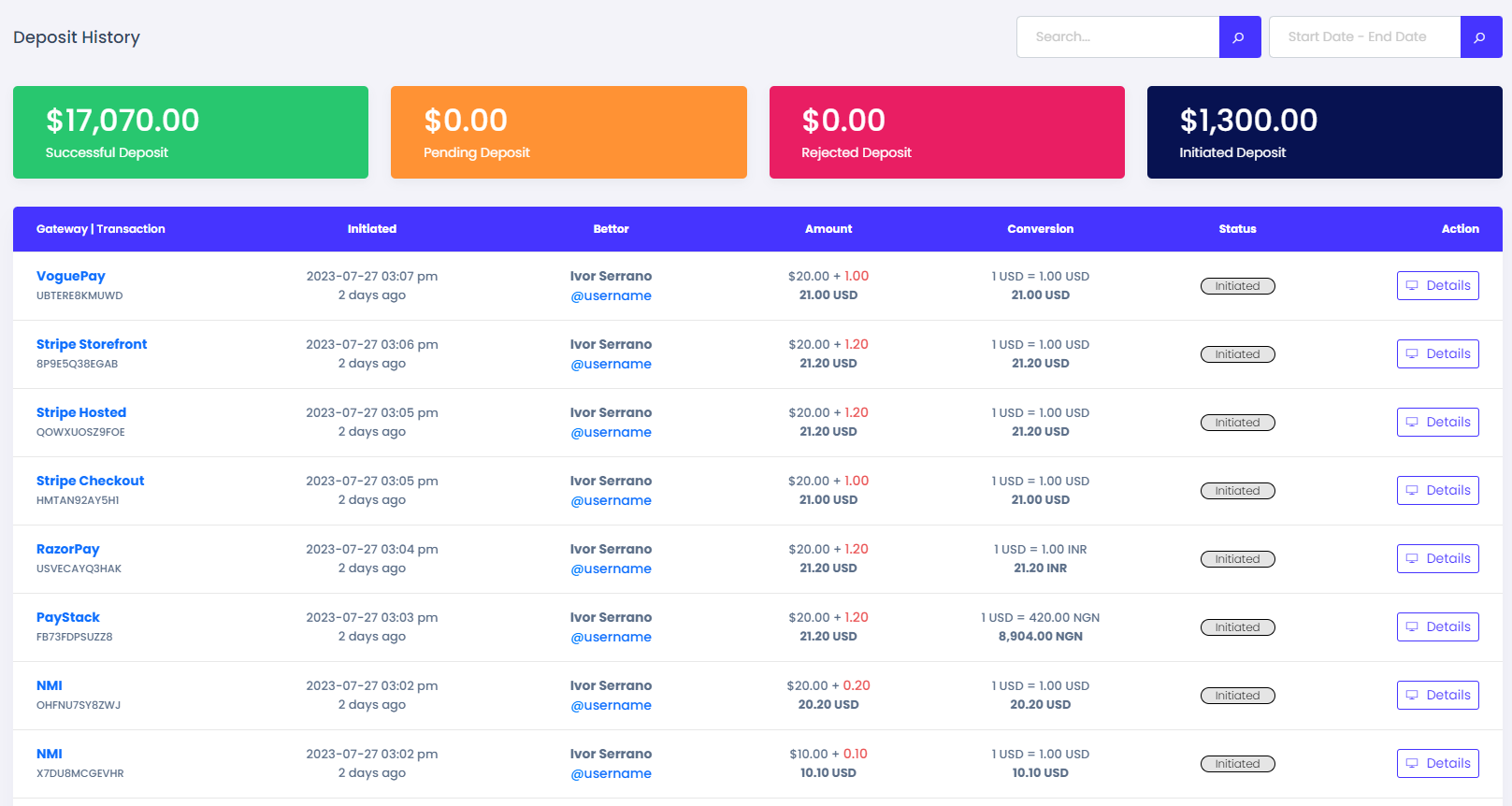
From the Deposits menu, the admin can see the deposit history and details. If a deposit is done by a manual payment gateway, then its status will be pending at first. Admin can approve or reject the pending deposits from the details page.
From the search field, the admin can search the deposit data by Transaction Number or username of the user.
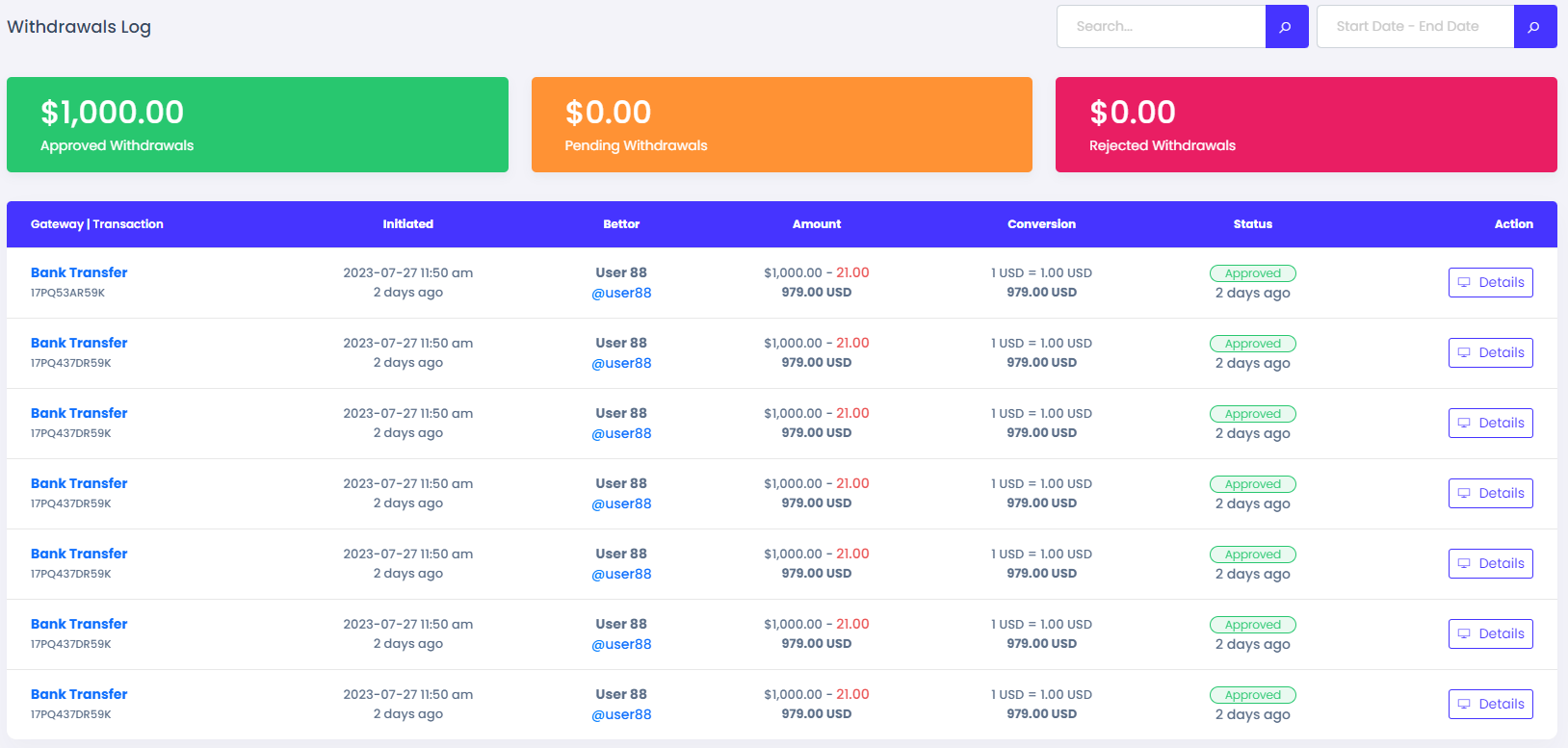
From the Withdrawals menu, the admin can see the Withdrawal history and details. As our withdrawal procedure is manual, Admin can approve or reject the pending withdrawals from the details page.
From the search field, the admin can search the withdrawal data by Transaction Number or username of the user.
We have two types of payment gateways like Automatic Gateways and Manual Gateways .
Automatic Gateways: We have added 25+ automatic gateways in this system. Admin just need to configure with valid credentials. If the users deposit money by automatic gateway, admin doesn't need to approve.
Manual Gateways: Admin can add manual gateways as he/she want. If the users deposit money by automatic gateway, admin need to approve.
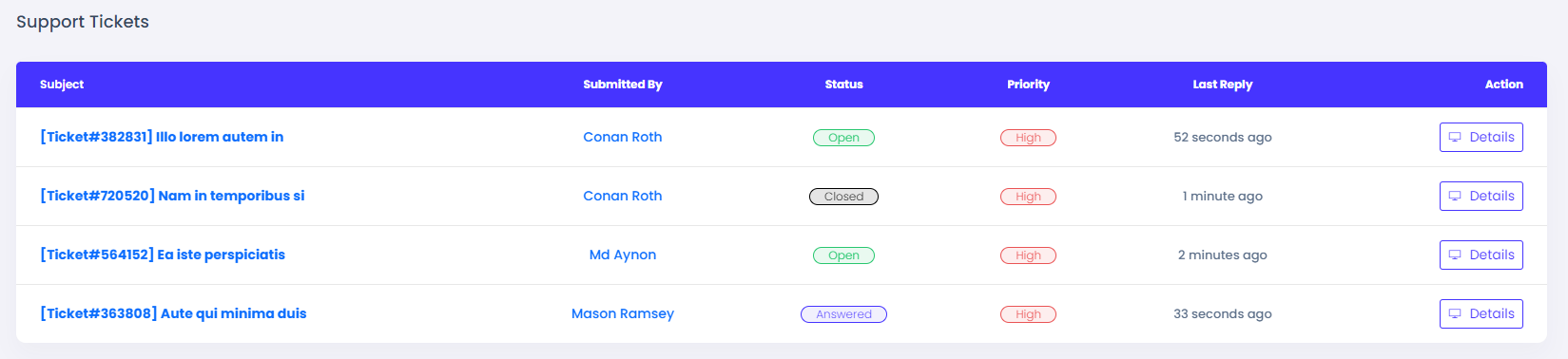
From the Support Ticket menu, admin can manage all support tickets opened by the users. Admin is able to reply or close a ticket from its details page.
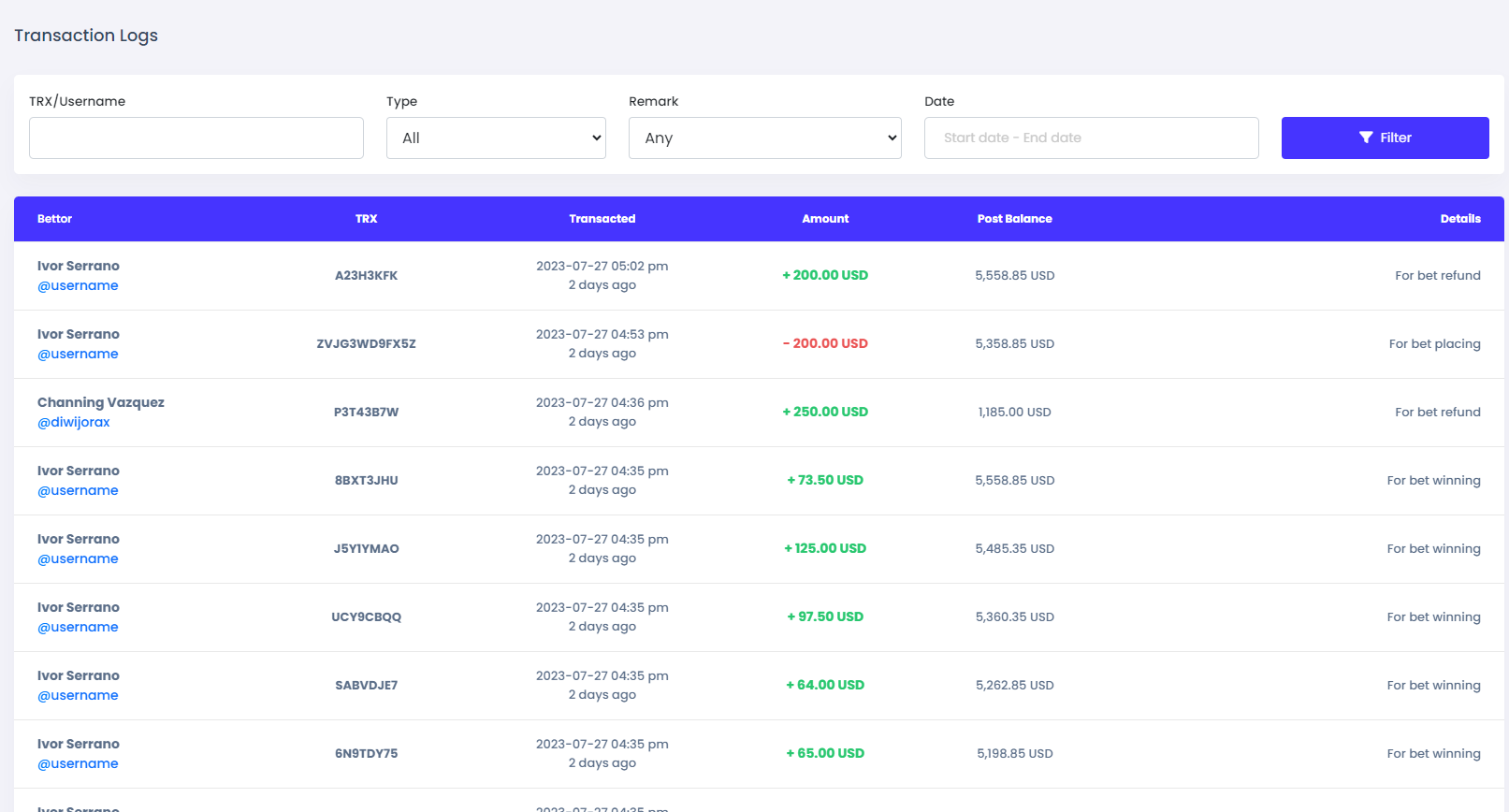
From the Report menu, admin can see the Transaction Log, Login History and the Notification History.
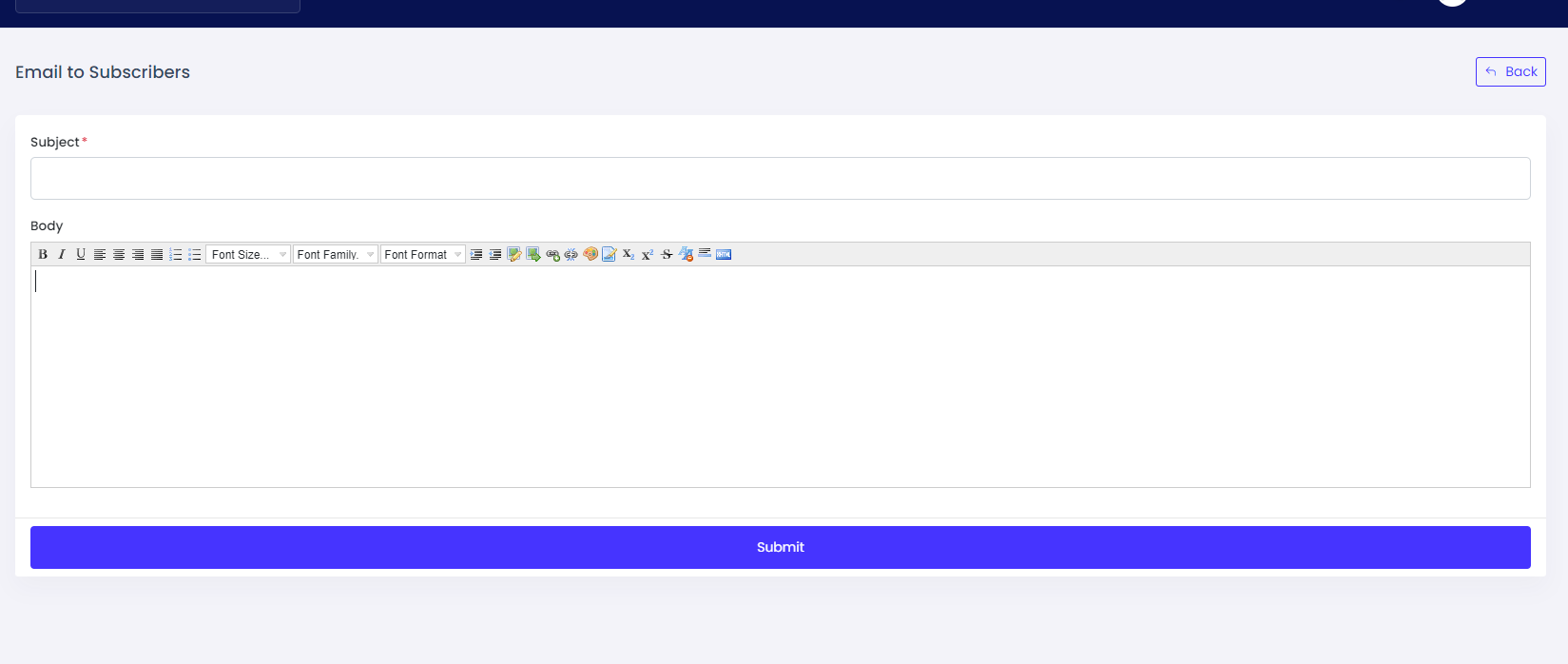
Anyone can subscribe from the footer section of the website of this system. Admin can send emails to subscribers for promotional purposes or any other notices.
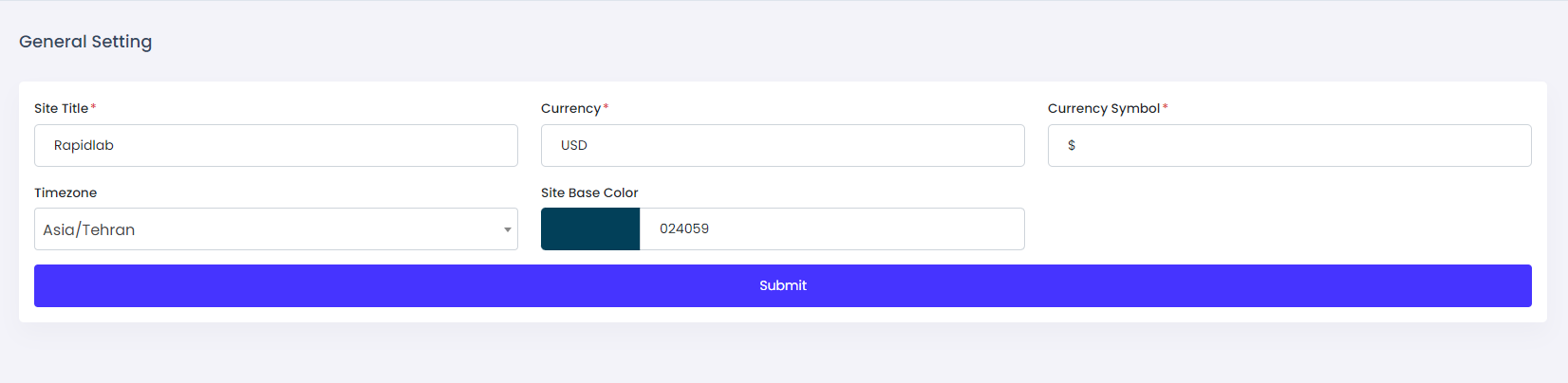
You can set the basic information from the general setting.
Site Title: The name of your website.
Currency: The base currency of your system.
Currency Symbol: The symbol of the base currency.
Time Zone: Timezone of your application.
Base Color: The base color of your website/frontend.
Admin can change the logo and favicon from here.
If the logo and favicon are not changed after you update from this page, please clear the cache from your browser. As we keep the filename the same after the update, it may show the old image for the cache. usually, it works after clear the cache but if you still see the old logo or favicon, it may be caused by server level or network level caching. Please clear them too.

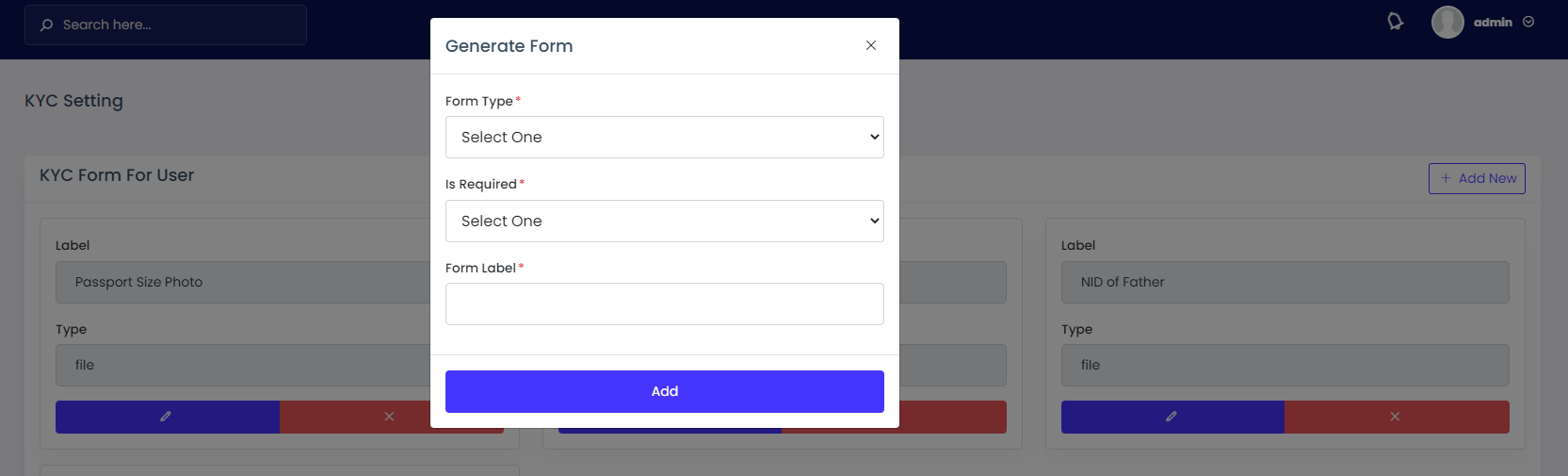
From the KYC Setting Menu admin can make the KYC form for user as he want.
KYC (Know Your Client) is an important features in this system. Admin may need to verify the
User/Account holder by several documents like Passport, Driving License, National Identity Card,
etc.
Admin can add fields by clicking on the Add New button.
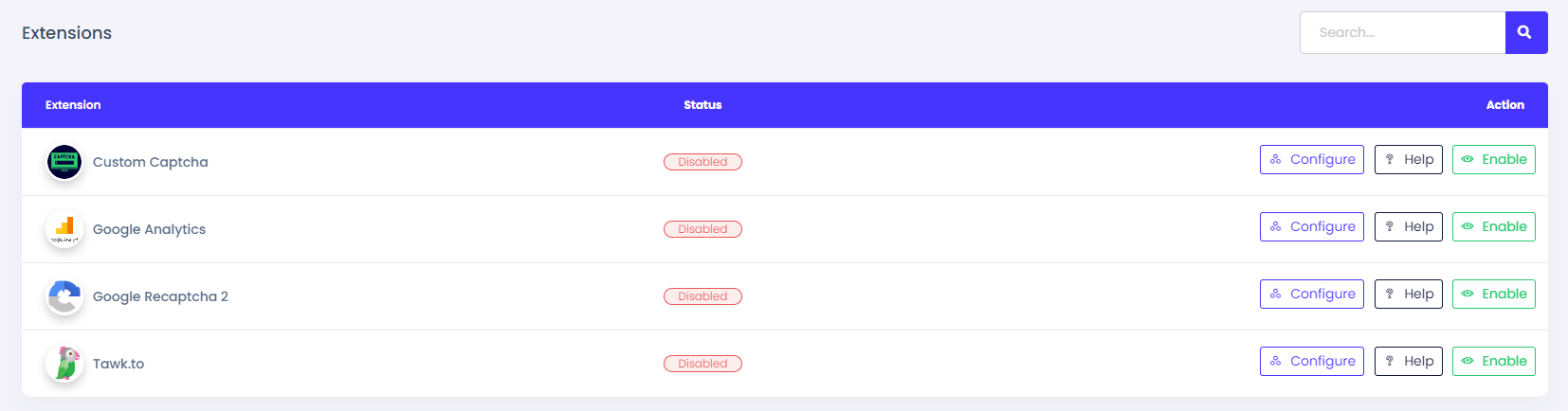
Extensions are some third-party plugins we have used you can configure them from here.
Custom Captcha: To test the human identity of the visitors a randomly generated sequence of letters and/or numbers appears as an image. This custom captcha is enabled, the captcha will appear in every form on the website and visitors need to prove their human identity by submitting the exact text in the captcha image.
Google Recaptcha 2:reCAPTCHA is a free service from Google that helps protect
websites from spam and abuse. A “CAPTCHA” is a turing test to tell human and bots apart.
We prefer to use Google Captcha over Custom Captcha.
Get the Site Key and Secret Key from here
Google Analytics: Google Analytics is a web analytics service that provides statistics and basic analytical tools for search engine optimization (SEO) and marketing purposes. The service is part of the Google Marketing Platform and is available for free to anyone with a Google account.
Tawk.to: Twak To is a chat tool It's a powerful free web chat tool that makes it easy for customers to message you through your website.
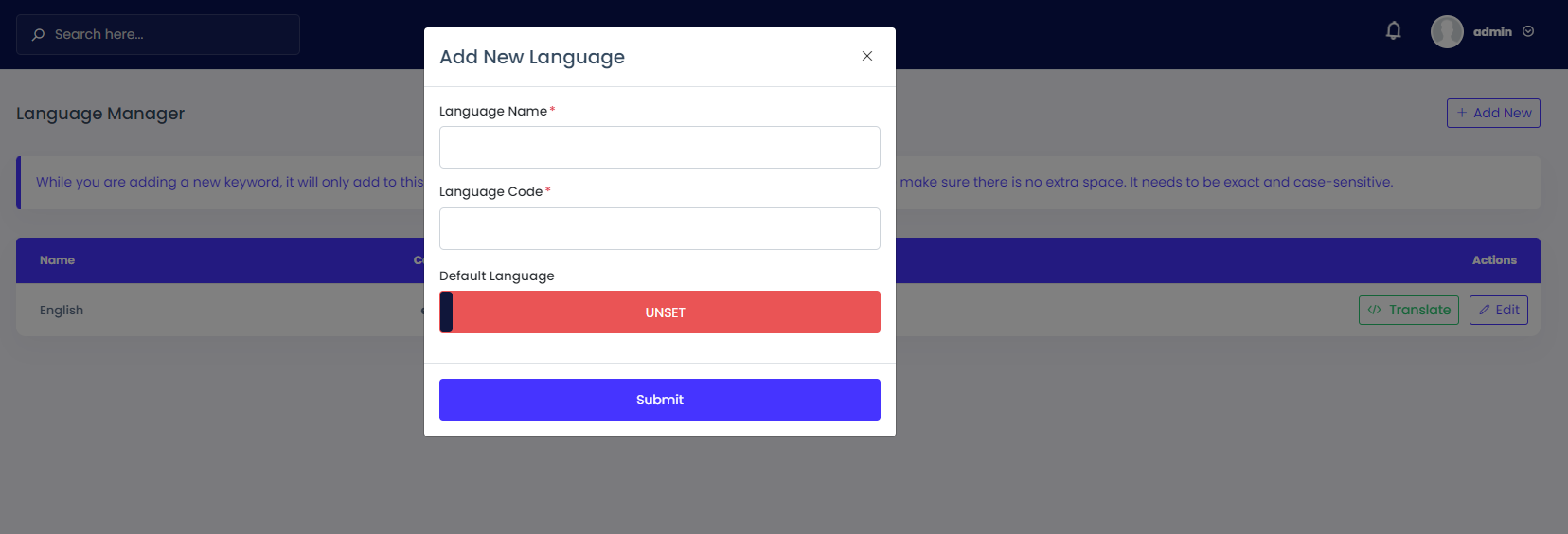
As our system is multilingual, the admin can add multiple languages from here. Admin needs to add keywords in English as the system has, and needs to translate them into the language he/she wants to translate. As our system is multilingual, the admin can add multiple languages from here. Admin needs to add keywords in English as the system has, and needs to translate them into the language he/she wants to translate.
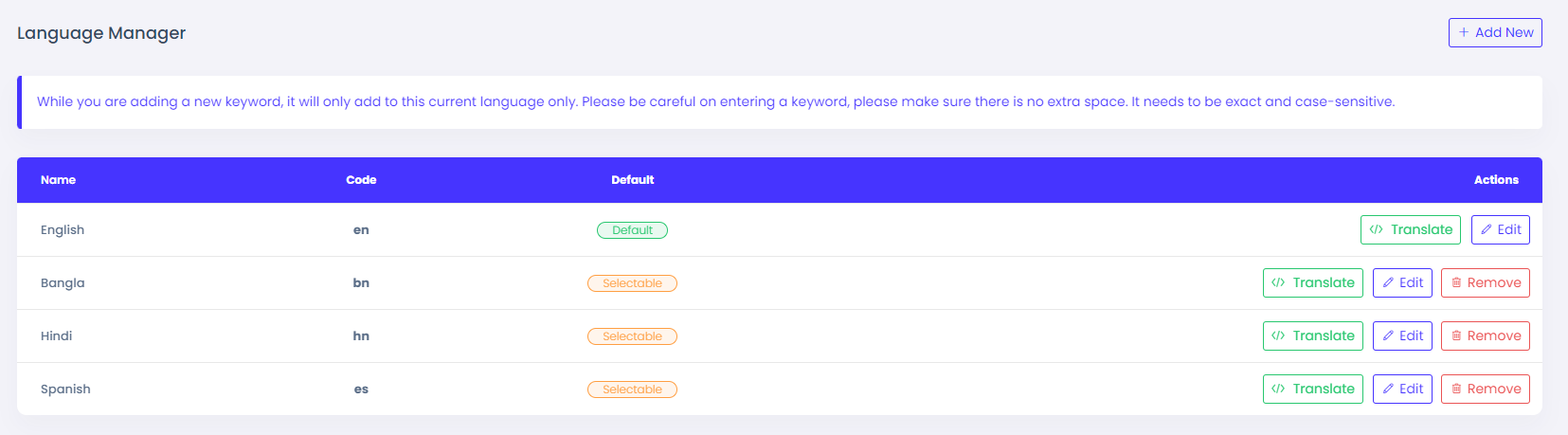
Add Keywords: Admin need to add the words/sentences as the system has. After clicking on the Add New Keyword button a pop window wll open and put the english word/sentence in the key field and add put the translated text on the value.
Edit Keywords: Admin is able to update the translated text of a keyword.
Import Keywords: Admin can import keywords from one language to another language. If you import keywords from another language then previous keywords and translated text will be removed.
You can add seo contents from the SEO Manager menu.
Meta Keywords: Meta keywords are meta tags that you can use to give search engines more information about a page's content. They're found in a webpage's HTML source code, and are not visible to visitors.
Meta Description: A meta description tag generally informs and interests users with a short, relevant summary of what a particular page is about.
Social Title: The social title is how you define your content's title.
Social Description: This description controls how the link will be described when it shows up in someone's feed.

Global Template is the template for all email. From the Global Template, the admin is able to update the email template. We have provided a template as a demo.

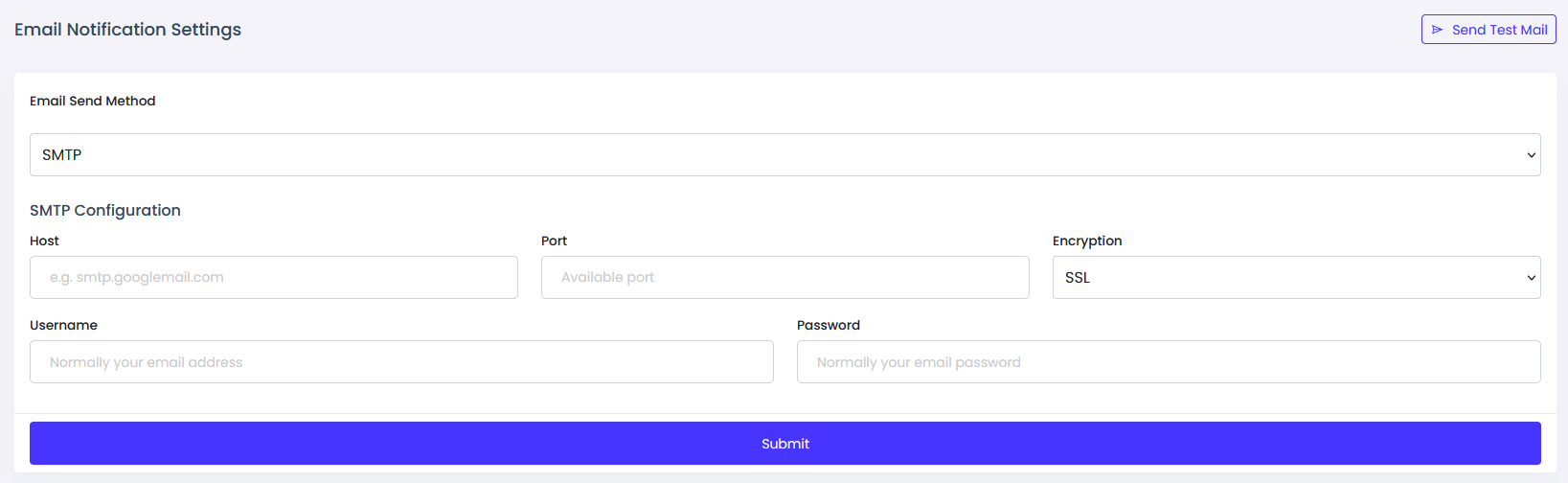
From the Email Setting menu, the admin can configure the email sending method. We have several email-sending methods like PHP Mail, SMTP, SendGrid API, and Mailjet API.
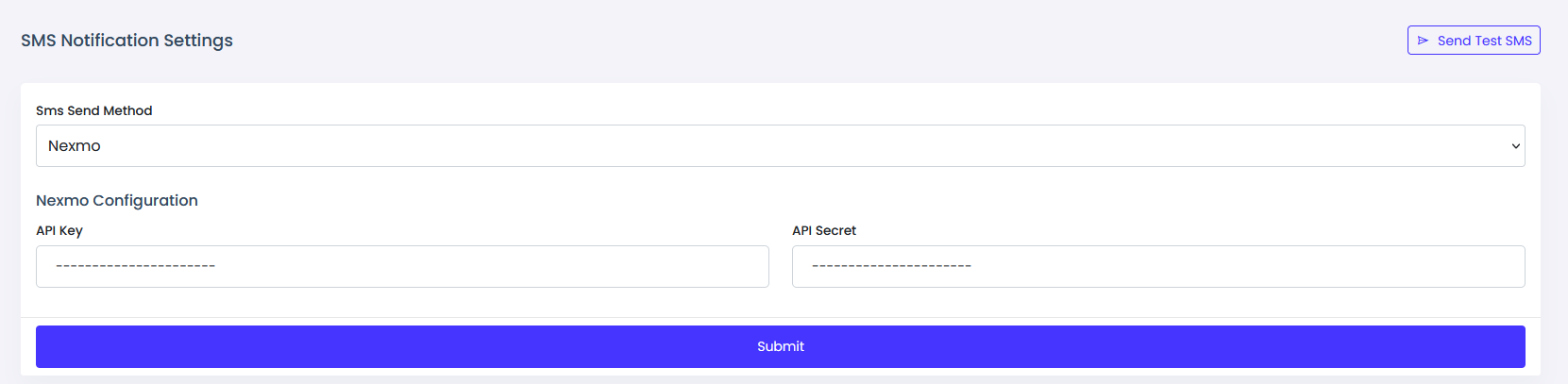
From the SMS Setting menu, the admin can configure the SMS sending method. We have several SMS sending methods like Clickatell, Infobip, Message Bird, Nexmo, Sms Broadcast, Twilio, Text Magic, and Custom API.
Admin can add more pages as he wants. For example, admin wants to add a new About Us page then he/she needs to provide the page name as About Us and the slug as about-us.
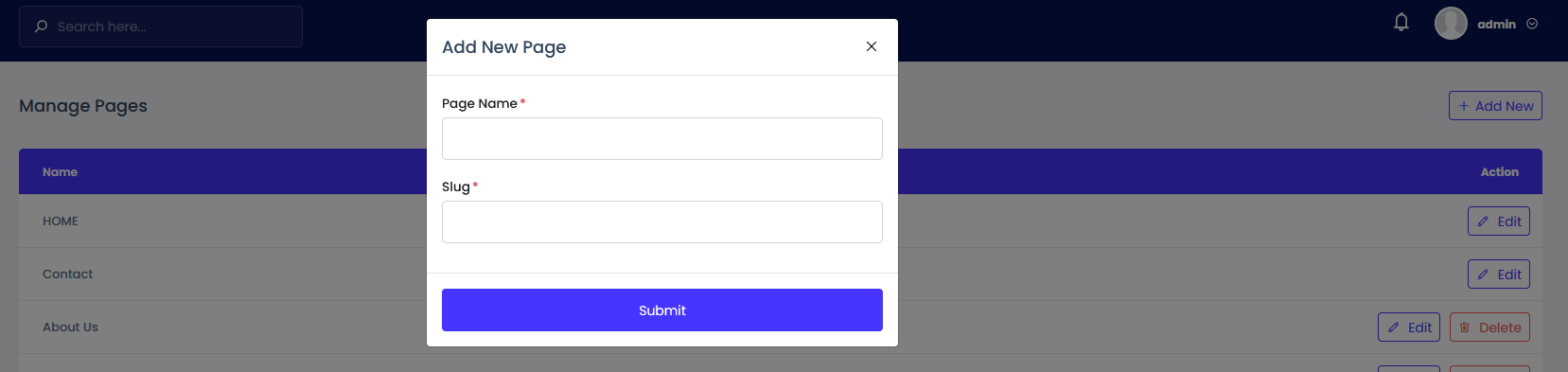
Admin can add/remove sections from pages by clicking on the Edit button of that page. Admin is able to move the position of the section and set the position of a section where to be placed in the website/frontend.